If there's a laptop hidden in your wardrobe for one of your kids this year, this is for you.
Setting it up before it goes under the tree saves a lot of hassle on the day. Your child can sign in and get going, and you're not sat there on Christmas morning trying to remember your Microsoft password.
Most of it takes about half an hour. We'll go through the laptop's own parental controls first, then the part most guides skip: AI chatbots like ChatGPT and Character.AI, which loads of kids use now and most parental controls can't see into.
It's also much easier to start with a few rules than to add them later, when it feels like something's being taken away.
First, set up the laptop's own parental controls
Every laptop comes with free parental controls. They all work in roughly the same way: your child needs their own account on the laptop, and the controls go on that account. If they just use yours, none of it applies.
Windows
Windows uses Microsoft Family Safety. Go to family.microsoft.com on your phone, add your child as a family member (you can create a Microsoft account for them there if they don't have one), then sign them in on the new laptop. From Family Safety you can set screen time, filter content, and approve apps and purchases. When they ask for extra time or a new app, the request comes to you.
Chromebook
Chromebooks use Google Family Link. Download the app on your phone, set up or add your child's Google account, and sign them in on the Chromebook. You can then set screen time, approve apps and restrict websites in Chrome.
MacBook
Macs use Screen Time. Add your child to Family Sharing, give them their own user on the Mac, then turn on Screen Time for their account in System Settings. That's where you'll find downtime, app limits and content restrictions.
A couple of other things worth doing, whatever the laptop. Keep automatic updates switched on. Keep the admin password to yourself, otherwise your child can just turn everything off. And think about where the laptop sleeps. Charging it downstairs overnight does more than most settings will.
Then think about AI, because those controls can't
Parental controls are good at telling you how long your child is online and which apps and sites they use. What they can't show you is what your child is actually saying to an AI chatbot.
That's become a big gap. Most kids use ChatGPT for homework now, which is fine. But a lot of them also use AI to talk through things they'd feel awkward raising with you. And some use "companion" apps like Character.AI or Replika, where the AI plays a character, a friend, or sometimes a boyfriend or girlfriend.
You can block AI sites, but with AI part of schoolwork now, blocking everything isn't realistic for most families. Kids who really want to will usually find a way round it. For most parents it makes more sense to allow it and keep an eye on it.
Ask which AI apps they use
Just ask, without making a big thing of it. ChatGPT and Gemini are the obvious ones, but ask about Character.AI, Talkie, PolyBuzz, Replika and Snapchat's My AI too. When we spoke to parents for our own research, several had never heard of AI companion apps. Their kids usually have.
Check the age ratings
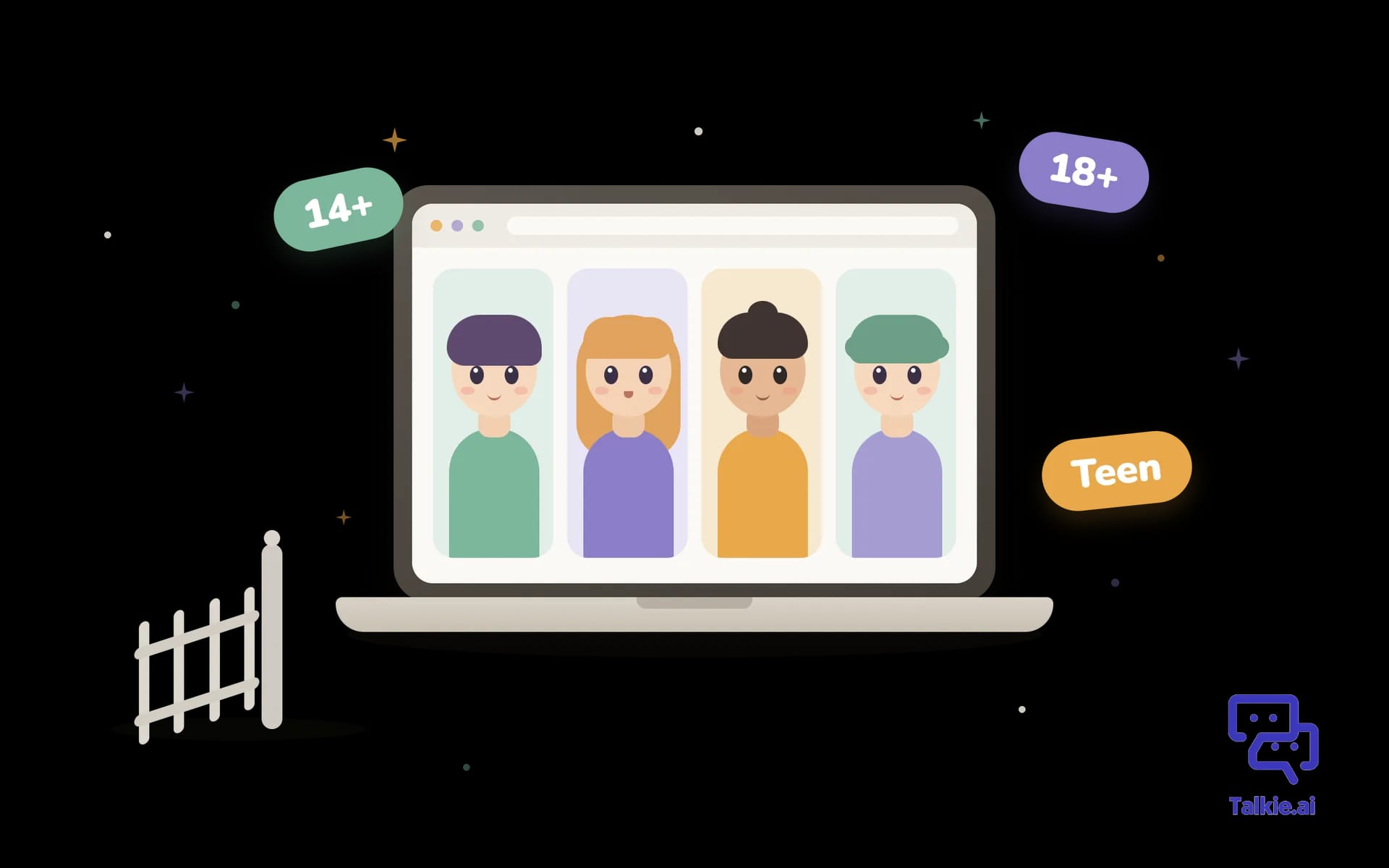
These are often higher than parents expect, and they're not always enforced. ChatGPT is 13 and over, and under-18s need a parent's permission. PolyBuzz says 18+ in its own rules. Talkie's terms say 14+, but the App Store rates it 18+.
If you want to check others, our free AI Safety Directory has safety assessments of the AI apps kids use most.
Link your account to theirs on ChatGPT
If your child is between 13 and 17, ChatGPT has parental controls you can turn on from the Parental Controls section in settings. Once your accounts are linked you can set quiet hours, turn off image generation, opt their chats out of AI training, and get a notification in a small number of high-risk situations.
It's worth knowing the limits, though. Your teen has to accept the invite. The controls don't let you read their conversations. And ChatGPT can be used without logging in at all, in which case none of it applies.
Agree a few house rules
Nothing formal. Something like: AI can help with homework but shouldn't do it for you, no AI chats after bedtime, and if an AI ever says something that feels off, tell us and you won't be in trouble.
Have a quick chat when you hand it over
No setting is as useful as your child knowing they can come to you. You don't need a lecture on Christmas Day. Just something like: "This is yours, we trust you with it, and if anything online ever bothers you, come and tell us." That's the bit that tends to stick.
Where Halo Aware fits in
We built Halo Aware for the AI gap above. It's a browser extension that goes on your child's computer and looks at their conversations on AI chatbots like ChatGPT, Character.AI and Gemini.
You don't get a feed of everything they type. You get summaries of what they're using AI for and the topics coming up over time. If a conversation turns concerning, you get an alert, and that's the only time you see the actual messages. We don't keep an archive of their chats, so there's nothing stored that could leak.
You set it up from your phone. Make an account, add your child and you'll get a code. Then enter the code in the extension on their laptop, which you can do before it's wrapped. There's a free plan with no card needed, or you can have a look at the live demo first to see exactly what parents see.
Quick recap
Before you wrap it:
Make your child their own account on the laptop
Turn on Family Safety, Family Link or Screen Time
Keep updates on and the admin password to yourself
Find out which AI apps they use and check the age ratings
Link your account to theirs on ChatGPT
Agree a couple of house rules
Set up Halo Aware if you want to know how they're using AI
One last thing
None of this needs to be perfect. If you only get round to making them their own account and having that quick chat, you're already ahead of most.
Kids are going to use AI whatever we do. What we can do is make sure they're not doing it completely on their own, and that they know who to come to when something doesn't feel right.
So get the kettle on, set it up one evening while they're in bed, and then wrap it. You'll enjoy Christmas morning a lot more for it.
If you want to see how Halo Aware would work for your family, have a look at the demo. No sign-up needed.