If you're feeling a bit overwhelmed by the sudden explosion of AI, you aren't alone. Just a year or two ago, we were worried about YouTube rabbit holes. Now our kids are talking to chatbots that can write stories, solve maths problems and give advice on just about anything.
I've been looking into how to actually "lock down" these tools. The truth? It's not as simple as flipping a single switch. Most AI tools weren't built with 10-year-olds in mind, so the parental controls can feel like they were added as an afterthought. Here's a breakdown of what works, what doesn't, and where the gaps still are.
1. The "Big Three" (ChatGPT, Gemini and Claude)
Most of the big AI companies have an age limit (usually 13+), but we all know how easy it is for a kid to breeze past a birthday scroll bar.
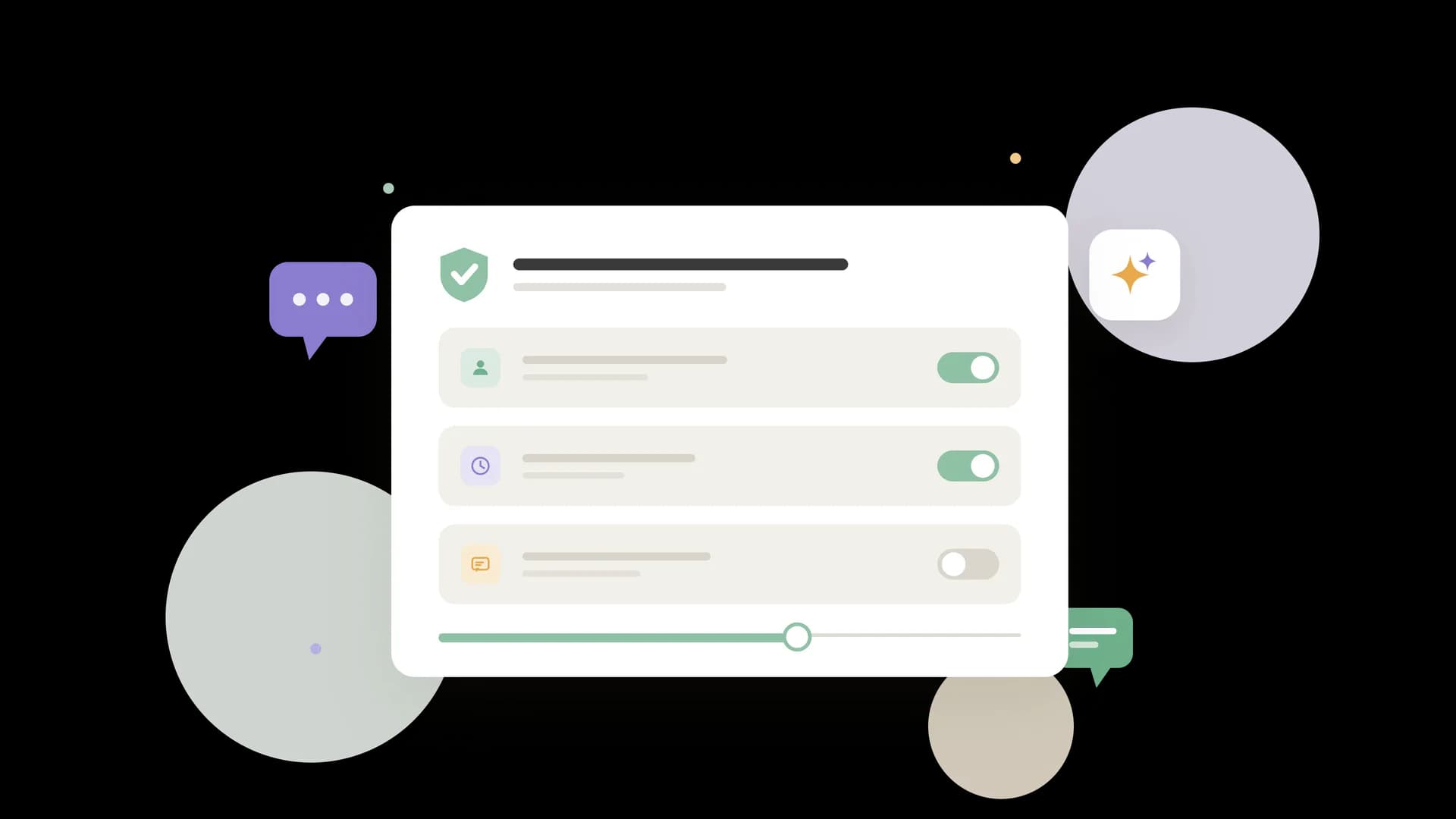
ChatGPT: This is the one that's changed the most. OpenAI has now rolled out proper parental controls. Once your teen links their account to yours, you can set quiet hours, reduce sensitive content, manage features like image generation and memory, and switch on Study Mode so it guides them through homework rather than handing over answers. In rare, serious cases you may also get a safety notification. It's genuinely worth setting up. The one thing to know: these controls let you shape what ChatGPT allows, but they don't let you see what your child is actually talking to it about, unless something crosses the line for one of those rare alerts.
Gemini (Google): If your child has a supervised Google Account through Family Link, Google has protections for teens built in. It's probably the most "integrated" version of parental controls right now, since it sits inside the Google account they already use, but it still needs you to be active in the Family Link app.
Claude (Anthropic): Claude is intended for adults, with a stated 18+ audience, and it doesn't offer dedicated parental controls. If your child is using it, that's worth knowing: there's no parent dashboard here, so the browser-level approach below matters more.
2. The Browser-Level Approach
Since many AI tools are used through a web browser rather than a dedicated app, your standard "block site" tools are your best friend here.
If you use a parental control app, make sure you're specifically checking the "AI" or "chat" categories. Sometimes these tools don't automatically file a brand-new AI site under "social media" or "chat," so you may have to add the URLs manually.
3. The "Snapchat" Problem
This is the one that catches a lot of parents off guard. Snapchat has "My AI" sitting right in the chat feed, in among the conversations your child is already having with friends.
The good news since I first wrote about this: you no longer need to pay for Snapchat+ to deal with it. In 2026 Snapchat made the option available to everyone. You can long-press the My AI chat, open its settings and choose "Clear from Chat Feed" to hide it, and you can clear the data it's collected. The honest caveat: this hides rather than permanently deletes it, so My AI can reappear if your child searches for it or Snapchat re-pins it. Still, it's a real improvement, and worth doing.
4. Why "The Talk" Matters More Than the Settings
I'll be honest: no filter is 100% foolproof. AI is designed to be creative and to find ways to answer questions. If a child tries hard enough to "jailbreak" a chatbot (yes, that's a thing now, we even made a quiz to help you spot it), they usually can.
So instead of relying on the software alone, I've found it helps to sit down and try to "break" the AI together.
Ask it a deliberately weird question.
Show them how it can confidently make things up (hallucinations).
Explain that the AI isn't a person, it's a very advanced "predictive text" machine.
Setting up parental controls for AI is a bit of a moving target. It's less "set it and forget it" and more "set it and check back in two weeks."
We're all trying to find the balance between letting kids use these genuinely useful tools and making sure they don't stumble into things they aren't ready for. Don't beat yourself up if you haven't got it all figured out. Nobody really has.
Details about ChatGPT, Gemini, Claude and Snapchat in this post are drawn from each company's own information and were checked in August 2026 and this blog has been updated since I wrote it in May 2026 These controls change often, so it's always worth checking the latest on each platform.